This is the third of three posts about the reporting solutions I put together when applying for a position with SERV. The first two describe how the synthetic data was created and how the HTML report was built on top of it. That report is interactive, but only within the views and the reporting date I had prepared. So the next step was a dashboard, where the reader picks the year and the year to compare it with, and drills down by industry, region and country, without waiting for me to rebuild anything. The constraints stayed the same: no heavyweight BI tool such as Tableau, and something that is easy to automate, versionable and free of licence costs.
From report to dashboard
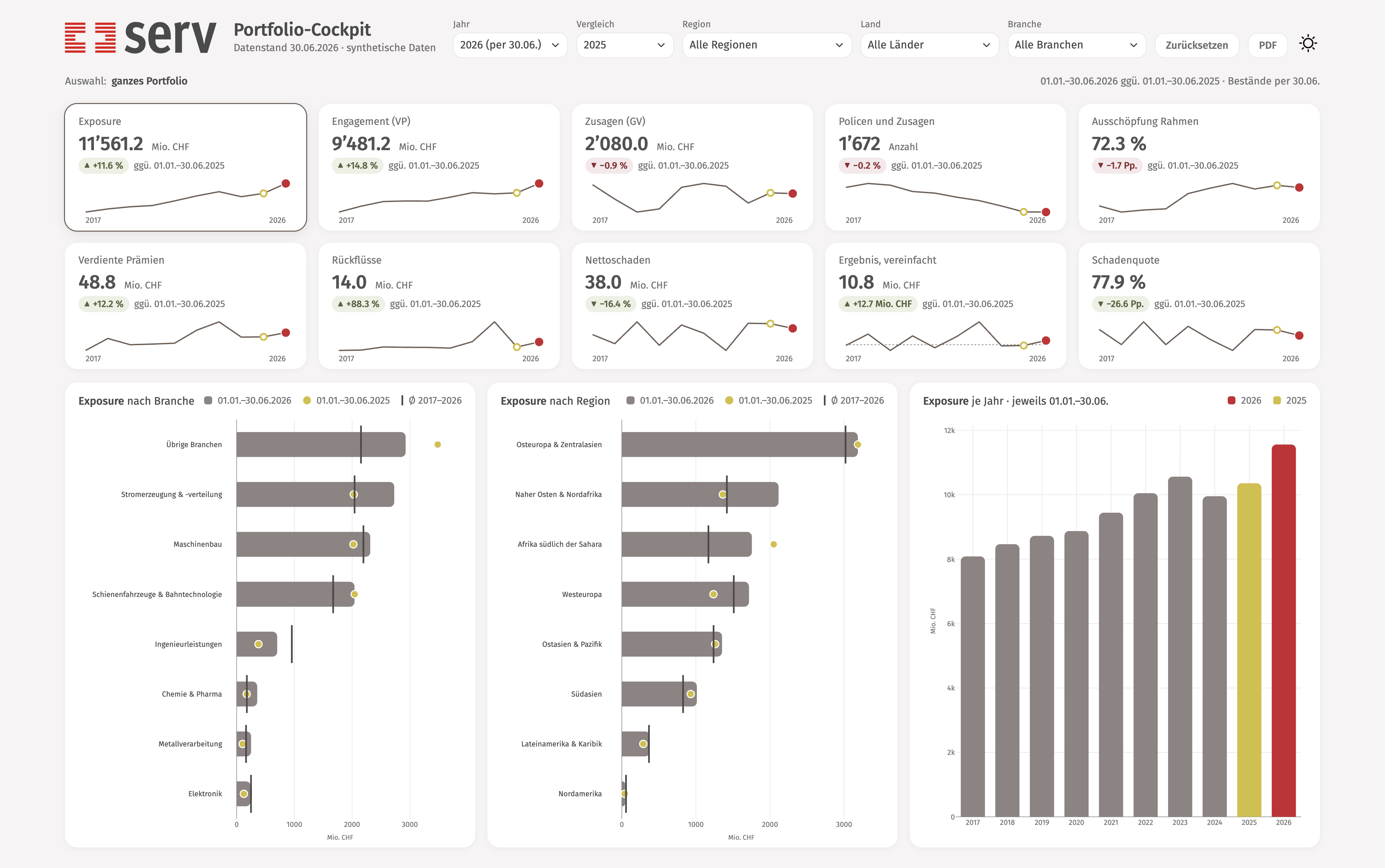
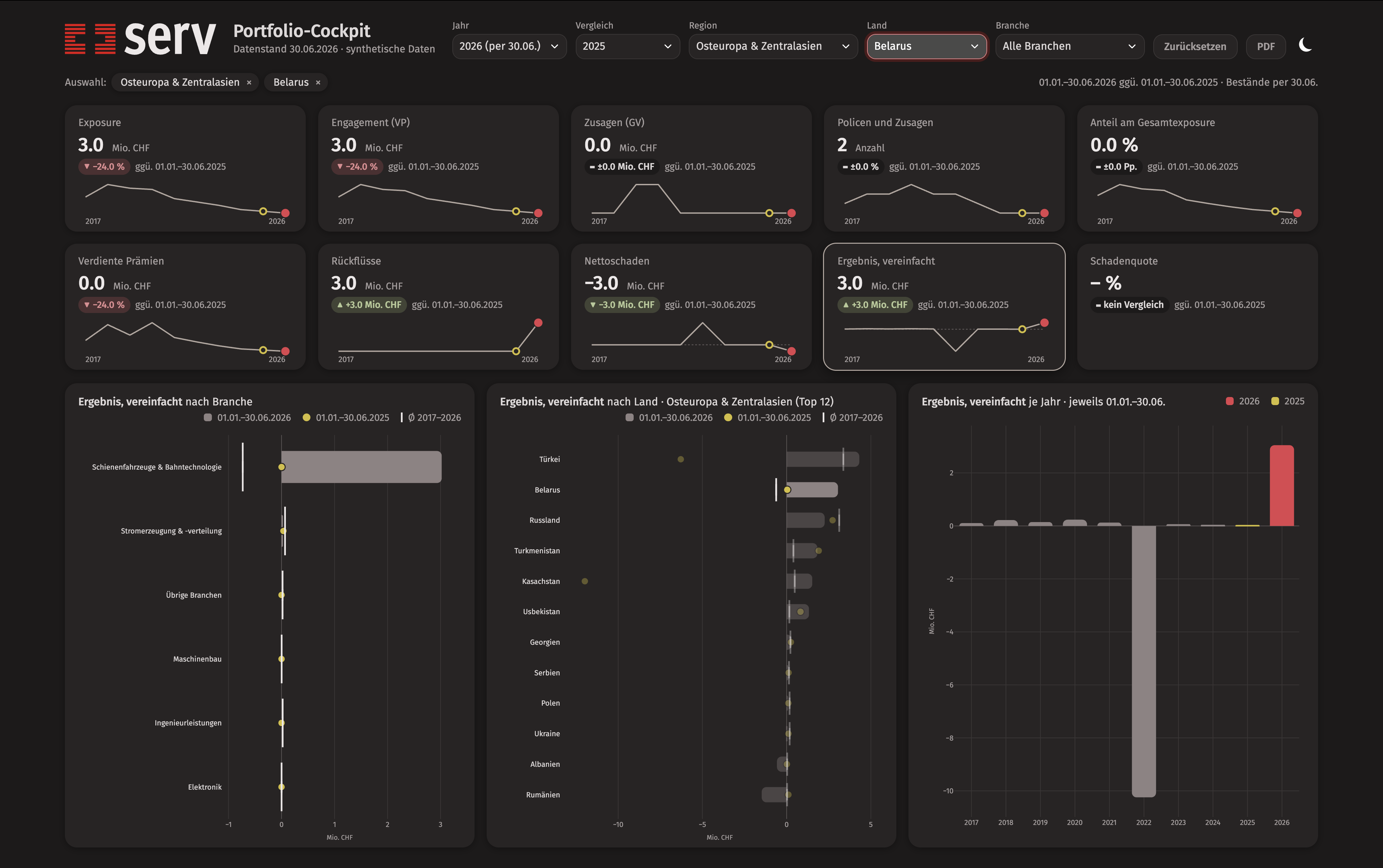
The dashboard is built with Shiny and runs on the same data as the report. With no filter applied, its figures match the report’s key figures exactly, and every breakdown adds up to the total. It also looks the same, because it reads a copy of the _brand.yml file described in the report post, so logo and colours are defined in one place for both. Ten KPI cards show the stocks and the result of the selected year, each with the change against the comparison year.
Comparing like with like
However, one thing in the data shaped the whole design: the figures stop on 30 June 2026. The most natural thing to do with a dashboard is to put this year next to last year. Here, however, this would compare half a year of premiums with a full year, and almost everything would look like a slump. Each single figure would be correct, but the comparison as a whole would be misleading. So, whenever 2026 is one of the two years, the dashboard compares January to June 2026 with January to June of the comparison year. In all other cases it compares whole years. And in the small trend lines on the KPI cards, the half year is drawn as a hollow point that is not joined to the line, so that nobody reads it as a full year by mistake.
# Always compare like with like: if one of the two years is still open, both as first half
# (stocks at 30.06.), otherwise whole years (stocks at 31.12.)
period_for <- function(year, comparison) {
  if (!is.na(open_year) && open_year %in% c(year, comparison)) "H1" else "FY"
}
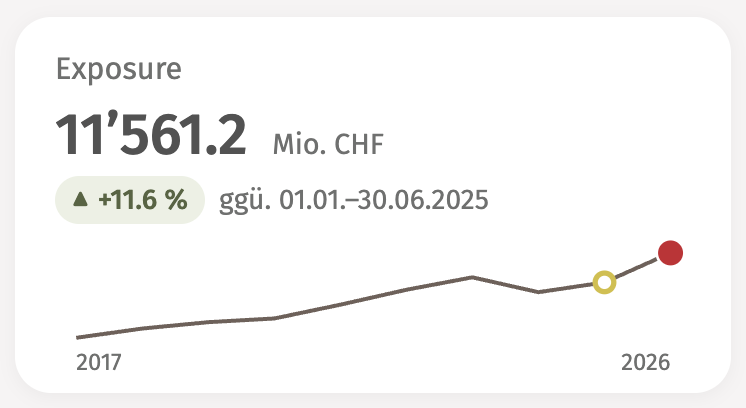
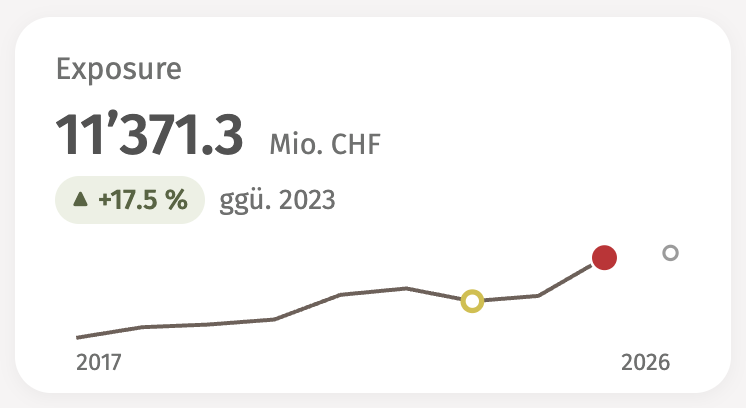
Other guardrails follow the same thinking. The loss ratio is left blank below half a million francs of earned premium, because otherwise a very small country could show a ratio of six thousand per cent. The colour of a change always shows whether it is good or bad for the insurer, so a rise in claim payments is marked as bad. Moreover, every change also carries an arrow and a sign, so that colour is never the only cue (which matters for readers with a colour vision deficiency).
One question per row
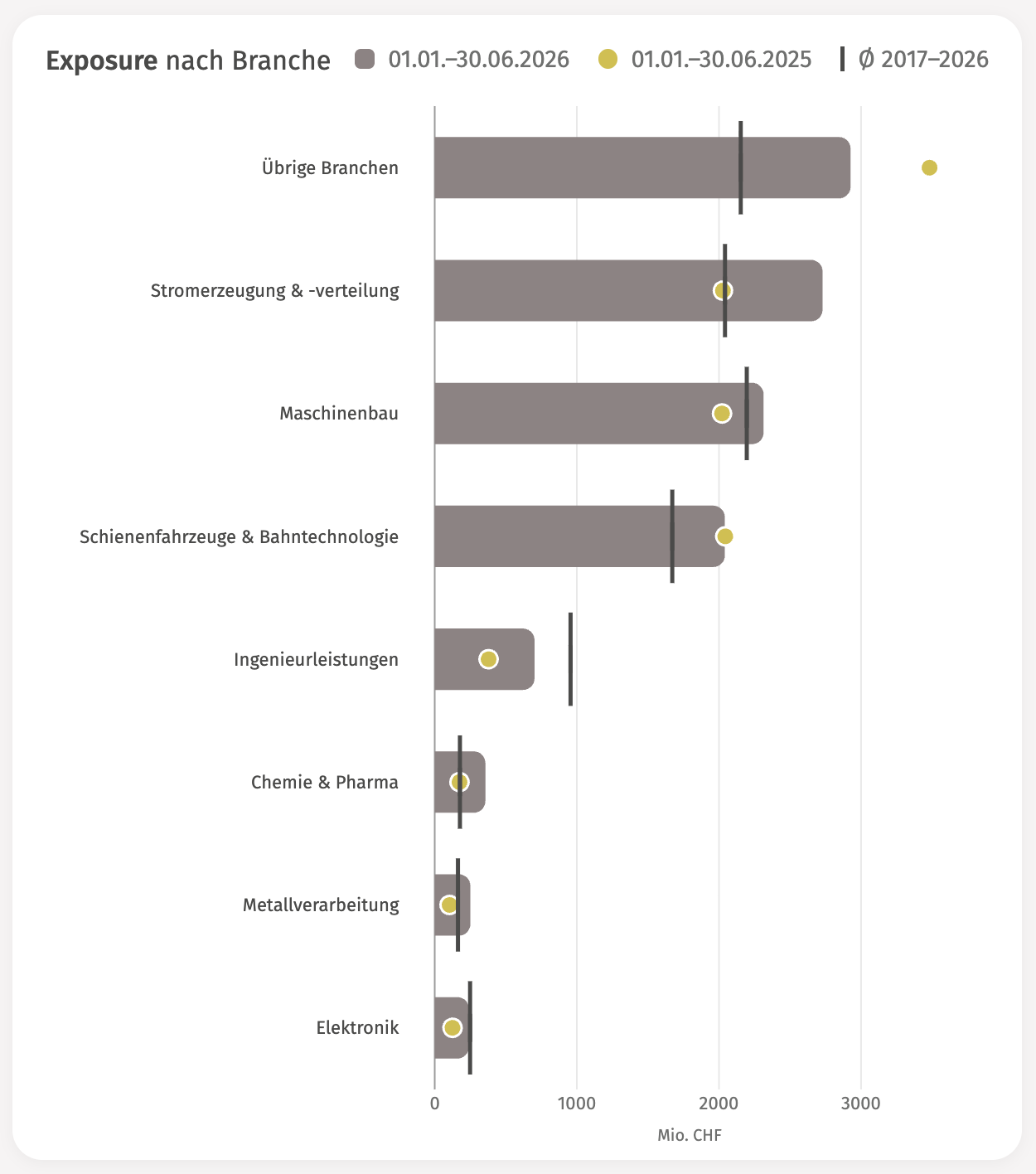
For the drill-downs I wanted each row to answer a single question, namely whether a given group is unusual or not. A bullet chart does this quite well. It shows a bar for the selected year, a circle for the comparison year, and a short vertical line for the long-run average. A click on a bar filters the whole dashboard to that group, and a second click clears the filter again.
Dark mode and PDF export
Two smaller features make the dashboard more pleasant to use. The first is a light and a dark mode. The dashboard starts in whatever the computer is set to, and a switch in the header changes it at any time. The charts are then redrawn with colours adjusted for the dark background, so that they stay readable. The second is a PDF button. A dashboard view is harder to pass on than a report, because the next person would have to make the same selections to see the same thing. So one click saves the current view as a one-page PDF of about 400 KB, in the same 3:2 format as the screen and with a file name that reflects the selection. The export always uses the light theme, so that the PDF also looks right when it is printed.
One more thing: the dashboard as an app
The HTML report can simply be sent by e-mail, as described in the previous post. A Shiny dashboard cannot be shared that easily, because it needs a running R session behind it. This usually means either R installed on the reader’s machine or a server. On my own machine that is no problem, but it makes the dashboard awkward to share with anyone who does not work with R. So I packed the whole thing into a Mac app, together with its own copy of R and all 77 packages the dashboard depends on.
For this I used the R package shinyelectron. It wraps the Shiny app in Electron, the framework many desktop apps are built on. With the setting below, it also puts a portable R into the app (in my case R 4.6.1, the same version I developed with). The whole build is a single script. The first run took a few minutes, mainly because the portable R had to be downloaded, and later rebuilds take about a minute.
build:
  type: "r-shiny"
  # A portable R with the app's packages ships inside the app: works offline and needs no R
  # on the recipient's Mac
  runtime_strategy: "bundled"
  # …
Pros and cons
The result is a single disk image of about 290 MB. Compared with the usual ways of sharing a Shiny app, this has some clear advantages. The recipient needs neither R nor an internet connection. The app starts its own R in about four seconds and then shows exactly the same dashboard as on my machine. And quitting the app also stops R, so nothing keeps running in the background.
However, there are also some drawbacks at the moment. The file is large, because a whole R installation travels with it. I have only built it for Macs with Apple Silicon. The app is not signed, because I do not have a paid Apple developer certificate, so macOS blocks the first launch (more on this at the end). Its name shows in lowercase in the Dock, which is a restriction of shinyelectron. And, as with the report, the data travels inside the file, so the same rule applies: it should only contain what one would also be willing to send by e-mail.
Have a look yourself
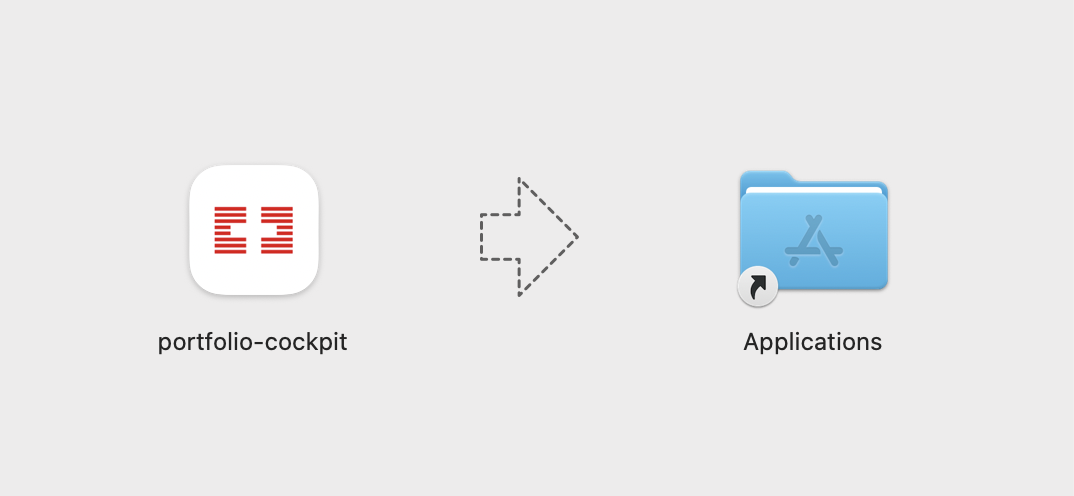
Anyone with an Apple Silicon Mac is welcome to try the app. Both the report and the app can be found on this page, and the app can also be downloaded directly. Please note that, like the report, the interface is in German. After opening the disk image, drag the app into the Applications folder and start it from there (for the first launch, see the note at the end). Then pick a year and a comparison year, click on the bars to filter, switch between light and dark mode, or save a view as a PDF.
That completes the series: synthetic data calibrated to published figures, a report generated from code, and a dashboard that can be handed over as an app. None of it needed a BI tool or a licence, and all of it can be rebuilt from the code whenever the data changes, which is what I set out to show in the first place.
A note on the first launch
Because the app is not signed, macOS refuses to open it the first time and warns that it cannot check the app for malicious software. On older versions of macOS, a right-click on the app and Open is enough to get past this. From macOS 15 (Sequoia) on, this shortcut no longer works. Instead, open System Settings → Privacy & Security, scroll down to the message about the blocked app, click “Open Anyway” and confirm with the password or Touch ID. This is only needed once, and afterwards the app starts normally.